Google Analytics in Next.js 15+ with @next/third-parties
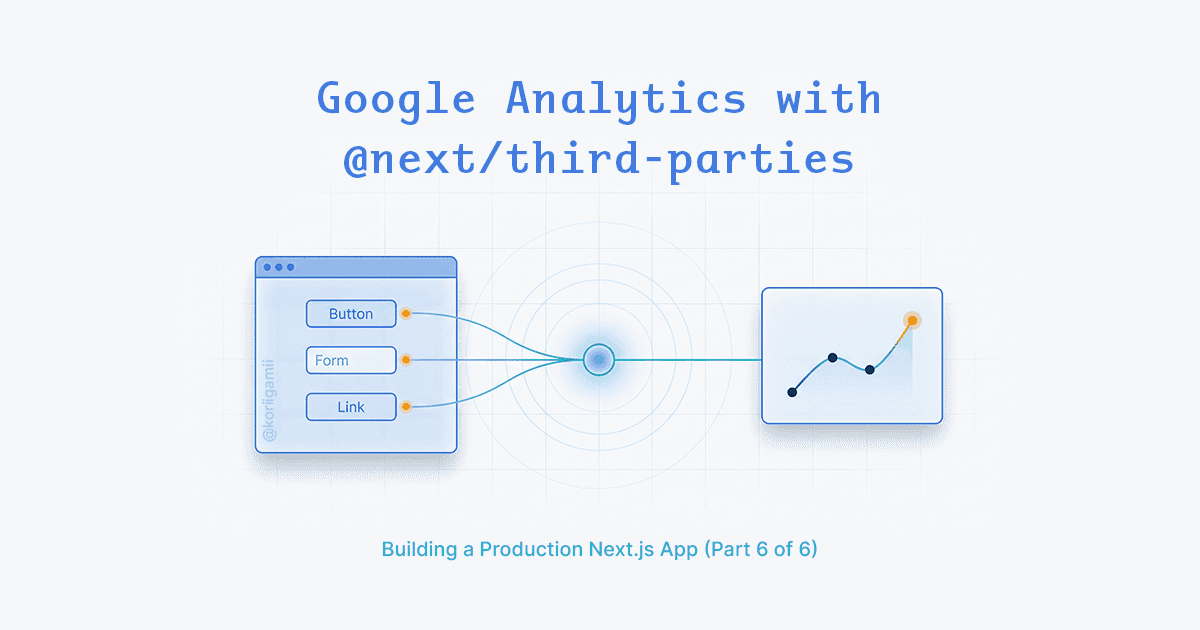
Adding Google Analytics to a Next.js site used to mean manually injecting script tags, dealing with hydration issues, and hoping you didn't break SSR. Next.js 15 introduced @next/third-parties, an official package that handles the messy parts for you.
This guide covers the setup, custom event tracking, and common gotchas.
Why @next/third-parties
Before this package, the typical approach was:
// The old way - manual Script component
import Script from 'next/script';

export default function Layout({ children }) {
  return (
    <html>
      <head>
        <Script
          src={`https://www.googletagmanager.com/gtag/js?id=G-XXXXX`}
          strategy="afterInteractive"
        />
        <Script id="gtag-init" strategy="afterInteractive">
          {`
            window.dataLayer = window.dataLayer || [];
            function gtag(){dataLayer.push(arguments);}
            gtag('js', new Date());
            gtag('config', 'G-XXXXX');
          `}
        </Script>
      </head>
      <body>{children}</body>
    </html>
  );
}
This works, but you're managing script loading yourself. The @next/third-parties package wraps this in a component that:
- Handles script loading timing correctly
- Avoids hydration mismatches
- Provides a typed
sendGAEventfunction for custom events - Follows Next.js best practices for third-party scripts
Installation
npm install @next/third-partiesThat's it. No additional dependencies.
Basic setup
Add the GoogleAnalytics component to your root layout:
// app/layout.tsx
import { GoogleAnalytics } from '@next/third-parties/google';

export default function RootLayout({
  children,
}: {
  children: React.ReactNode;
}) {
  return (
    <html lang="en">
      <body>
        {children}
        <GoogleAnalytics gaId="G-XXXXXXXXXX" />
      </body>
    </html>
  );
}
Replace G-XXXXXXXXXX with your measurement ID from Google Analytics.
Finding your measurement ID
- Go to Google Analytics
- Admin (gear icon) → Data Streams
- Click your web stream
- Copy the Measurement ID (starts with
G-)
Environment variable setup
Hardcoding the GA ID works, but using an environment variable is cleaner:
# .env.local
NEXT_PUBLIC_GOOGLE_ANALYTICS_ID=G-XXXXXXXXXX
// app/layout.tsx
import { GoogleAnalytics } from '@next/third-parties/google';
export default function RootLayout({
children,
}: {
children: React.ReactNode;
}) {
const gaId = process.env.NEXT_PUBLIC_GOOGLE_ANALYTICS_ID;
return (
<html lang="en">
<body>
{children}
{gaId && <GoogleAnalytics gaId={gaId} />}
</body>
</html>
);
}The NEXT_PUBLIC_ prefix is required because the GA ID needs to be available client-side.
Production-only tracking
You probably don't want analytics running during development. Add an environment check:
// app/layout.tsx
import { GoogleAnalytics } from '@next/third-parties/google';

export default function RootLayout({
  children,
}: {
  children: React.ReactNode;
}) {
  const gaId = process.env.NEXT_PUBLIC_GOOGLE_ANALYTICS_ID;
  const isProduction = process.env.NODE_ENV === 'production';

  return (
    <html lang="en">
      <body>
        {children}
        {gaId && isProduction && <GoogleAnalytics gaId={gaId} />}
      </body>
    </html>
  );
}
Now analytics only loads in production builds.
Pageview tracking
Good news: you don't need to do anything special. Google Analytics automatically tracks pageviews when the browser history state changes. This means client-side navigations between Next.js routes send pageview data without configuration.
For this to work, make sure "Enhanced Measurement" is enabled in your GA property:
- Admin → Data Streams → Select your stream
- Enhanced measurement → Toggle on
- Ensure "Page changes based on browser history events" is checked
Custom event tracking
Pageviews are automatic, but you'll want to track specific user actions: button clicks, form submissions, purchases.
The sendGAEvent function
Import sendGAEvent from @next/third-parties/google:
'use client';

import { sendGAEvent } from '@next/third-parties/google';

export function BookingButton() {
  const handleClick = () => {
    sendGAEvent('event', 'booking_started', {
      service_type: 'consultation',
    });

    // Continue with booking logic...
  };

  return (
    <button onClick={handleClick}>
      Book Now
    </button>
  );
}
The function signature is:
sendGAEvent(command: string, eventName: string, eventParams?: object)commandis usually'event'eventNameis your custom event nameeventParamsis an optional object with additional data
Common event patterns
Button clicks:
sendGAEvent('event', 'cta_clicked', {
  button_text: 'Get Started',
  page_location: window.location.pathname,
});
Form submissions:
const handleSubmit = async (formData: FormData) => {
  const result = await submitForm(formData);

  if (result.success) {
    sendGAEvent('event', 'form_submitted', {
      form_name: 'contact',
    });
  }
};
External link clicks:
<a
  href="https://external-site.com"
  target="_blank"
  onClick={() => sendGAEvent('event', 'external_link_clicked', {
    destination: 'https://external-site.com',
  })}
>
  Visit Partner Site
</a>
Service selection:
const handleServiceSelect = (serviceName: string) => {
  sendGAEvent('event', 'service_selected', {
    service_name: serviceName,
  });

  // Navigate to booking page...
};
Creating a tracking utility
For larger apps, wrap sendGAEvent in a utility file:
// lib/analytics.ts
'use client';

import { sendGAEvent } from '@next/third-parties/google';

export const analytics = {
  trackEvent: (eventName: string, params?: Record<string, string | number>) => {
    sendGAEvent('event', eventName, params);
  },

  trackPageView: (pagePath: string) => {
    sendGAEvent('event', 'page_view', {
      page_path: pagePath,
    });
  },

  trackButtonClick: (buttonName: string, location?: string) => {
    sendGAEvent('event', 'button_clicked', {
      button_name: buttonName,
      page_location: location || window.location.pathname,
    });
  },

  trackFormSubmission: (formName: string, success: boolean) => {
    sendGAEvent('event', 'form_submission', {
      form_name: formName,
      success: success ? 'true' : 'false',
    });
  },

  trackBookingStarted: (serviceType: string) => {
    sendGAEvent('event', 'booking_started', {
      service_type: serviceType,
    });
  },

  trackBookingCompleted: (serviceType: string, bookingId: string) => {
    sendGAEvent('event', 'booking_completed', {
      service_type: serviceType,
      booking_id: bookingId,
    });
  },
};
Usage:
'use client';

import { analytics } from '@/lib/analytics';

export function ContactForm() {
  const handleSubmit = async (e: React.FormEvent) => {
    e.preventDefault();

    const result = await submitContactForm(formData);
    analytics.trackFormSubmission('contact', result.success);
  };

  return <form onSubmit={handleSubmit}>...</form>;
}
Event naming conventions
Google Analytics has some rules for event names:
- Must be 40 characters or fewer
- Must start with a letter
- Can only contain letters, numbers, and underscores
- Case-sensitive (
button_clickedandButton_Clickedare different events)
Use snake_case for consistency:
// Good
sendGAEvent('event', 'booking_completed', { ... });
sendGAEvent('event', 'contact_form_submitted', { ... });

// Avoid
sendGAEvent('event', 'Booking Completed', { ... });
sendGAEvent('event', 'contact-form-submitted', { ... });
Debugging analytics
Check if the script loads
Open browser DevTools → Network tab → Filter by "google". You should see requests to googletagmanager.com.
Use GA Debug mode
Install the Google Analytics Debugger Chrome extension. It logs all GA events to the console.
Real-time reports
In Google Analytics:
- Reports → Realtime
- Open your site in another tab
- Watch events appear as they happen
Events show up in realtime within seconds. Standard reports can take 24-48 hours to populate.
Verify the tag is detected
- Admin → Data Streams → Select your stream
- Click "Test your connection"
- Enter your URL
- Should show "Your Google tag was correctly detected"
Common issues
Events not showing up
Check the environment: Events only fire in production if you added the isProduction check. For testing, temporarily remove that condition.
Wrong measurement ID: Double-check the ID. Typos are common.
Ad blockers: Many ad blockers prevent GA scripts from loading. Test in incognito mode with extensions disabled.
Duplicate pageviews
If you're seeing duplicate pageviews, you might have both the old Script method and the new GoogleAnalytics component. Use one or the other, not both.
Events not attached to the right page
When tracking events, the page URL is automatically captured. If you need to override it:
sendGAEvent('event', 'custom_event', {
  page_location: '/custom/path',
  page_title: 'Custom Page Title',
});
sendGAEvent is undefined
Make sure:
- The
GoogleAnalyticscomponent is in your layout - You're calling
sendGAEventin a client component ('use client') - The component has mounted (events won't fire during SSR)
TypeScript types
The sendGAEvent function accepts any object for eventParams. For type safety, define your event types:
// lib/analytics.ts

type EventParams = {
  button_clicked: {
    button_name: string;
    page_location: string;
  };
  form_submitted: {
    form_name: string;
    success: boolean;
  };
  booking_completed: {
    service_type: string;
    booking_id: string;
  };
};

export function trackEvent<T extends keyof EventParams>(
  eventName: T,
  params: EventParams[T]
) {
  sendGAEvent('event', eventName, params);
}
Now you get autocomplete and type checking:
// Type-safe
trackEvent('button_clicked', { button_name: 'cta', page_location: '/home' });

// Type error - missing page_location
trackEvent('button_clicked', { button_name: 'cta' });
Privacy considerations
Cookie consent
Depending on your audience, you may need cookie consent before loading GA. Common pattern:
'use client';

import { GoogleAnalytics } from '@next/third-parties/google';
import { useState, useEffect } from 'react';

export function AnalyticsWrapper() {
  const [consentGiven, setConsentGiven] = useState(false);

  useEffect(() => {
    const consent = localStorage.getItem('analytics_consent');
    if (consent === 'true') {
      setConsentGiven(true);
    }
  }, []);

  if (!consentGiven) return null;

  return <GoogleAnalytics gaId={process.env.NEXT_PUBLIC_GOOGLE_ANALYTICS_ID!} />;
}
Then conditionally render in layout:
<body>
  {children}
  <AnalyticsWrapper />
  <CookieBanner onAccept={() => { /* trigger re-render */ }} />
</body>
IP anonymization
GA4 anonymizes IP addresses by default. You don't need to configure anything extra.
File structure
app/
  layout.tsx          # GoogleAnalytics component
lib/
  analytics.ts        # Optional: tracking utility functions
.env.local              # NEXT_PUBLIC_GOOGLE_ANALYTICS_ID
Key takeaways
Use
@next/third-partiesinstead of manual script injection. Pageviews are tracked automatically with Enhanced Measurement. UsesendGAEventfor custom events in client components. Add aNODE_ENV === 'production'check to avoid dev tracking.
The @next/third-parties package removes the friction from GA setup. Add the component, configure your measurement ID, and you're tracking. Custom events are one function call. No manual script management, no hydration issues.
Going further: Looker Studio for client reporting
Setting up GA4 on your site is one thing. When a client asks "how is my website performing?" — they don't want to navigate Google Analytics. They want a clean dashboard with a date picker and the five numbers they actually care about.
Looker Studio connects directly to GA4 and lets you build that dashboard without any code.
Connecting GA4 to Looker Studio
- Go to lookerstudio.google.com and create a new report
- Click Add data → search for Google Analytics
- Select your GA4 property → click Add
That's the connection. All GA4 data is now available as dimensions and metrics in Looker Studio.
What to include in the dashboard
I built this for a client who is a mental well-being life coach — she publishes articles frequently and drives traffic from LinkedIn and Facebook. She needed answers to specific questions, not a full analytics education.
Overview
- Date range control — lets her toggle between last 7, 30, or a custom range herself
- Scorecards: total sessions, total users, average engagement time
Audience
- Device category breakdown (desktop / mobile / tablet)
- Top countries by sessions
- Top browsers and operating systems
Traffic sources
- Session source / medium table — shows whether traffic is coming from LinkedIn, Facebook, direct, organic search, or email
- With UTM parameters on her links, this table shows exactly which post or campaign drove each visit
Content performance
- Top viewed pages
- Top 5 articles by sessions — essential if your client publishes content regularly and wants to know what resonates
UTM tracking for content creators
UTM parameters are the difference between "traffic came from Facebook" and "traffic came from that specific post you published last Tuesday."
Add them to every link your client shares:
https://example.com/blog/article-slug?utm_source=facebook&utm_medium=social&utm_campaign=march-content
The Session Source / Medium chart in Looker Studio will label them exactly as you've set. Your client sees at a glance which content channel is actually driving visitors — not just which platform.
When Looker Studio is worth setting up
Not every client needs a custom dashboard — GA4's built-in reports are sufficient for most. Looker Studio earns its setup time when:
- Your client doesn't want to learn the GA4 interface
- Multiple stakeholders need to view the same data
- The client publishes content regularly and wants to track performance systematically
- You want to combine GA4 with other data sources (Google Search Console, Sheets)